Companies and branches
Create companies, group them and manage branches.
No product matches that search. Try another word, or tell us what you need.
The control panel for your whole setup.
Administer companies, branches, users, roles and permissions, and control licences, languages, branding and updates from one place.
Available
Overview
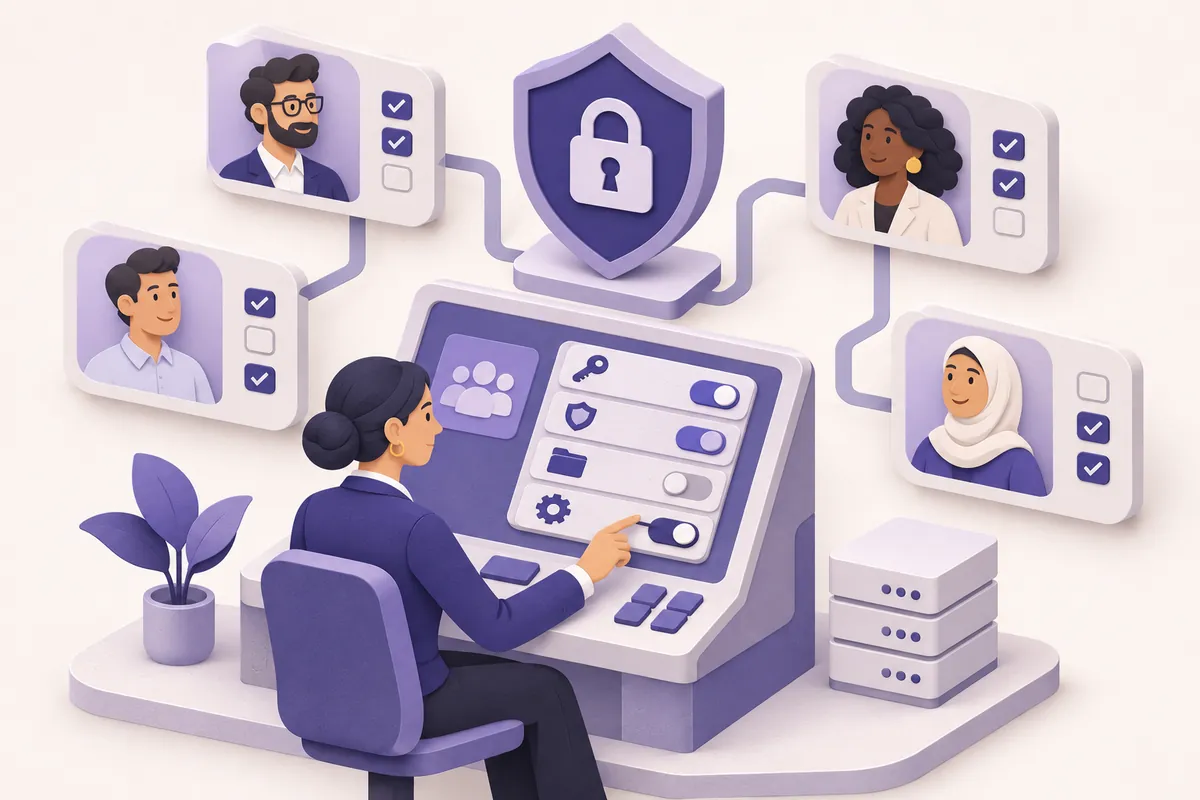
Every business system needs one place where the rules are set: which companies exist, who the users are, what each person may open, which modules are licensed and how people sign in. Engine Root is that place. It is the control panel behind all the other modules.
From Engine Root an administrator creates companies and branches, adds users, gives roles their page rights, assigns modules and manages licences and trials. The same module holds the languages, the branding, the control settings for each module and the release updates.
Create companies, put them in groups and manage their branches from one module.
Roles carry read, write, modify and execute rights for every page.
See which modules a company has, start a trial and assign modules to users.
Add a language, translate the interface and apply your own brand.
Features at a glance
The main areas this product covers. We confirm the exact features and setup for your package before you commit.
Create companies, group them and manage branches.
Named roles with read, write, modify and execute rights for each page.
Assign modules to users and manage licences and trials.
Password, one-time code, QR login and Google Sign-In, with device limits.
Add a language and translate the interface.
Your own brand, domain and login theme.
Signed release bundles and version updates.
Register and allocate attendance devices.
In detail
Each area below is part of the product. We confirm the exact features and setup for your package before you commit.
Engine Root is where a company is set up before anyone works in it. You create the company, place it in a company group if you run several, and add its branches. Departments and designations are kept as shared lists, so every module uses the same names. The Company License page shows, for each company, the modules that are available and active, the subscription status, and the start and end dates.
Users are added once and then given access to the companies they work in. Permissions are set page by page with four rights: read, write, modify and execute. You can set rights for a role, for a company group or across companies, so you do not repeat the work for every person. Modules are assigned to users on their own page. An administrator can also reset a user's password. The other modules check these rights on the server every time.
The Login Type page controls how people sign in. The platform supports sign-in with a password, with a one-time code, by scanning a QR code with a device that is already signed in and approving it there, and with Google Sign-In. Each sign-in is recorded against a device, and the number of devices a user may be signed in on can be limited. Which options are switched on for your installation is a setup decision, and we confirm it with you.
The interface is not fixed to one language or one look. On the New Language page you add a language, and on the Translator page you translate the labels the users see. Branding lets you apply your own name, logo and login theme, and white label lets the workspace run under your own domain. Theme and widget pages complete the look of the workspace.
Each business module has its own control pages in Engine Root. There are controls and workflow controls for finance, HR, CRM, sales, procurement, inventory, production, projects, assets, fleet, budgets and helpdesk. The Docs365 controls set file formats, share limits, virus scanning and encryption. Approval Config holds approval settings. The device pages register attendance machines and allocate each one to a company and a branch.
New versions of the software arrive as release bundles. The version pages list each release with its version, where it came from, when it was built and whether it is signed. An administrator publishes a release or withdraws it, with a note. The same page shows which companies are on the current version and which are behind, and it keeps a history of who published what.
How it works
Add the company, place it in a group if needed, and create its branches.
Give the company its modules, or start a trial, on the Company License page.
Create the users and give them access to the company.
Give each role its read, write, modify and execute rights, page by page.
Assign the licensed modules to the users who need them.
Set the sign-in options, the language and the branding for the workspace.
Who uses it
Each person sees the screens and records their role allows, and nothing more.
Runs the whole installation: companies, licences, sign-in options, branding and releases.
Manages the users and page permissions of their own company.
Knows that every module follows one set of users, roles and rights.
Sets module controls, languages and devices while preparing a company for go-live.
Reports and records
Works with
IAKKA products share the same people, customer and company records. Add any of these when you are ready.
The platform administrator: the person who looks after the whole installation. Whether that is someone in your team or IAKKA on your behalf depends on how your system is hosted. Company administrators manage the users and permissions of their own company.
Rights are set for each page, with four separate rights: read, write, modify and execute. You can set them for a role or for a company group, so a new user gets the right access by receiving the right role.
The platform supports password, one-time code, QR login from a signed-in device and Google Sign-In, with a limit on devices. Which of these are switched on for you is decided during setup, and we confirm it with you.
Yes. Branding covers your name, logo and login theme, and white label lets the workspace run under your own domain. What is included depends on your package, so we confirm it before you commit.
Yes. You add a language on the New Language page and translate the interface labels on the Translator page. How complete a language is depends on how many labels have been translated.
Updates come as release bundles. A release is published from the version pages, where you can see whether it is signed and which companies are current or behind. How and when updates are applied to your installation is agreed with you.
Available. What is included depends on the package and setup you choose. We confirm this in writing before you commit.
Choose “Book a demo” on this page. Your enquiry will carry this product’s name, so tell us your team size, your current process and the result you need.
Tell us how your team works today. We will show you the products that fit.