Website templates
Under Design & branding you see the template catalogue: the website designs installed on your system.
No product matches that search. Try another word, or tell us what you need.
Shape your online presence.
Website builder tools available through the installed package.
Package-dependent
Overview
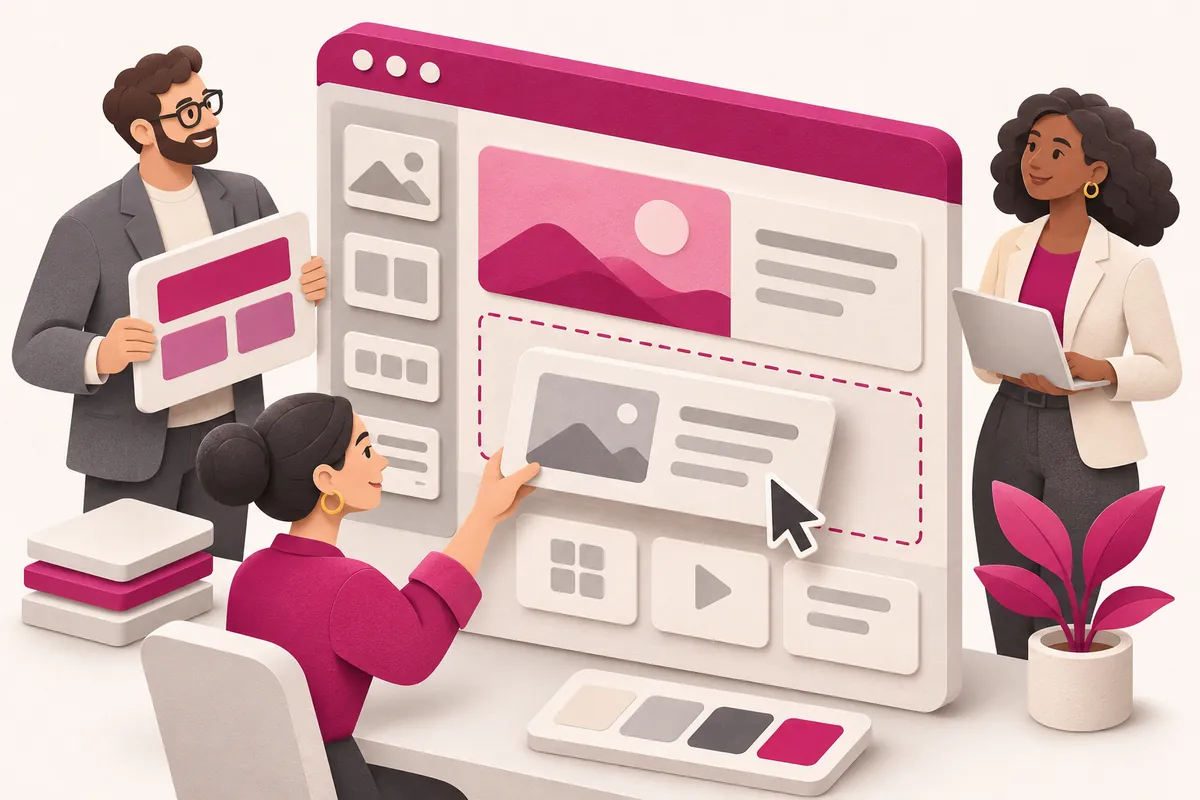
Not every page should look the same, yet most businesses do not want to design each one from nothing. Website Builders in iWBS gives you a guided way to shape your site: pick a template for the whole website, then choose a layout for each page and arrange its sections.
The tools work on top of Website Management. You write the content there, then use the page layout editor to choose a layout, move sections up or down and hide the ones you do not need. Save a draft, preview the real page and publish. The tools you get depend on your installed package.
Choose from the website templates installed for you and preview one before you use it.
Give a page a different arrangement, such as editorial sections, a split introduction or compact sections.
Move page sections up or down and hide optional ones without touching code.
Every design or layout change is saved as a draft and previewed before visitors see it.
Features at a glance
The main areas this product covers. We confirm the exact features and setup for your package before you commit.
Under Design & branding you see the template catalogue: the website designs installed on your system.
Each supported page has a Page layout panel below its content.
The sections you arrange are filled from the page's content fields.
Alongside the template you set the branding used across the site: business name, tagline, logo, accent colour and a footer note.
Nothing changes on the live site until you publish.
In detail
Each area below is part of the product. We confirm the exact features and setup for your package before you commit.
Under Design & branding you see the template catalogue: the website designs installed on your system. You can search it, preview a template and choose Use this template. Your pages and products are kept when you change template, so you are changing the look, not rebuilding the content. Additional template packages are installed by the platform administrator, not uploaded by you. Which templates you start with depends on your package.
Each supported page has a Page layout panel below its content. First choose a layout: the original page design, editorial sections, a split introduction or compact sections. Then arrange the sections of the page: heading and introduction, page content, benefits, workflow, questions and answers, and the closing link. You can move a section up or down and hide optional ones. The heading always stays first and visible, so a page cannot be left without a title.
The sections you arrange are filled from the page's content fields. You enter the main heading and introduction, the body text, a list of benefits with one item per line, workflow steps with one step per line, and questions with their answers. A banner image or video is picked from the Media library. Because content and layout are separate, you can change the arrangement of a page without retyping its text.
Alongside the template you set the branding used across the site: business name, tagline, logo, accent colour and a footer note. You can also set the support and sales email addresses and a link to your workspace sign-in, each of which is hidden if left blank. Branding is saved with the design draft, so you see the template and your branding together in the preview before publishing.
Nothing changes on the live site until you publish. Save a draft of a page to open a preview of the complete page, and preview a saved website design at desktop, tablet and mobile widths. When you are happy, publish; otherwise discard the design draft. Each time a page layout is saved, a snapshot is kept and the most recent saves are listed with their version. The history is a record of what was saved; one-click restore of an old version is not available.
How it works
Preview the installed templates and select the one that suits your business.
Enter the business name, tagline, logo and accent colour, and save the design draft.
Fill in each page's heading, text, benefits, steps and questions in Website Management.
Pick a layout for the page, reorder its sections and hide the ones you do not need.
Check the page and the design at desktop, tablet and mobile widths.
Publish the design and the page so visitors see the new version.
Who uses it
Each person sees the screens and records their role allows, and nothing more.
Control over the site's template, branding and page arrangement, with a preview before anything is published.
A simple way to reorder or hide sections on a page without asking a developer.
A consistent, branded website built from approved templates and layouts.
Reports and records
Works with
IAKKA products share the same people, customer and company records. Add any of these when you are ready.
No. It is a guided builder. You choose from installed templates and page layouts, then reorder and hide a fixed set of sections. You cannot place elements anywhere on a blank canvas. This keeps pages consistent and avoids broken designs.
Templates are installed as packages by the platform administrator, not uploaded from the admin screen. If you want a custom design, tell us and we will confirm whether it can be prepared as a template for your installation.
No. Pages and products are kept when you change template. The template changes how the site looks. You can preview a template and your saved draft before you publish, so you see the result first.
The layout editor applies to supported page types, such as feature, solution, guide and about pages. Other pages keep the design given by the template. Which tools are available also depends on your installed package, so we confirm the scope with you.
Yes. The builder tools work on the pages, text and media held in Website Management, so the two are used together. We confirm which of these areas your package includes before you commit.
Package-dependent. What is included depends on the package and setup you choose. We confirm this in writing before you commit.
Choose “Book a demo” on this page. Your enquiry will carry this product’s name, so tell us your team size, your current process and the result you need.
Tell us how your team works today. We will show you the products that fit.